Katalon – Schema Management
Overview
Section titled “Overview”The schema determines which fields a record of a given primary type has. Management happens in the admin UI under Configuration → Schemas. Fields can be created, edited, and deleted without database migrations.
For a complete example configuration with relation fields and a following procedure, see Walkthrough: setting up your own collection. More reusable configurations are available in the Cookbook.
Only users with the admin or superuser role can create, change, or delete fields.
Creating fields (admin UI)
Section titled “Creating fields (admin UI)”- Open the admin UI, select Schemas in the left menu.
- Select the primary type on the left (Objects, Entities, Places, Occurrences).
- Click New field at the top right.
- Fill in the field properties in the form and save.
After saving, the field is immediately visible in all data-entry forms. Existing records without the new field value remain valid, as long as the field is not marked as required.
Deleting fields and legacy data (legacy fields)
Section titled “Deleting fields and legacy data (legacy fields)”Deleting a field is a soft delete: the field is marked as is_deleted and removed from the schema configuration and from new input forms. Field values already stored in existing records remain untouched in the database.
Restoring fields
Section titled “Restoring fields”Deleted fields can be reactivated from the field list via “Restore”. Katalon validates this server-side:
- If the field is a subfield of a field group, the parent group must be active — deleted parent groups must be restored themselves first.
- The internal field name and any configured detail role must not collide with an active field created in the meantime; Katalon reports an error instead of a silent conflict.
- Restoring a field group automatically reactivates its deleted subfields as well. Individual subfields can also be restored separately via the restore button in the group’s detail view.
Directly below the label, a multilingual help text can be set. It appears in the data-entry form as a small info icon (?) next to the field label and shows entry guidance, conventions, or examples for this field when clicked — useful for things like date formats, controlled-vocabulary conventions, or internal abbreviations that aren’t obvious from the field label alone.
Properties of a field definition
Section titled “Properties of a field definition”In the field form, the basic options Required, Repeatable, and — where applicable — Multilingual remain directly visible. Field-type-specific settings such as vocabulary, relation, or authority source also appear directly on the field. Sort order, portal and search display, public API output, facets, validation, default value, locking, and AI configuration are under Advanced options.
| Property | Required | Description |
|---|---|---|
name |
Yes | Internal identifier (lowercase, underscores). Immutable after creation. Example: photographer |
label.de |
Recommended | German display label. Appears in the UI. |
label.en |
Optional | English display label. |
help_text.de / help_text.en |
Optional | Help text shown to cataloging staff in the data-entry form next to the field label as an info icon (e.g. entry guidance or conventions for the field). |
field_type |
Yes | Field type (see below). |
is_required |
No | If set, the field must be filled in when saving a record. |
is_repeatable |
No | If set, multiple values can be stored per record. |
sort_order |
No | Numeric sort order in the form. Smaller numbers appear first. |
target_subtype |
No | If set, the field only applies to the specified subtype. |
is_public |
No | Active by default. If the “Output publicly via APIs” option is disabled, the value remains visible to logged-in staff, but is published neither in the public portal nor via anonymous REST, search, OAI, or IIIF output. |
detail_slot |
No | Assigns the field to the main area or the sidebar on public detail pages. Default: sidebar. |
detail_role |
No | Can mark the field as a description. Only one description field is allowed per record type and subtype. |
settings |
No | Field-type-specific options as a JSON object (see below). |
Public and internal fields
Section titled “Public and internal fields”The visibility of a field in a detail or list view is not access control. For data such as internal notes, contact details, or not-yet-published provenance information, “Output publicly via APIs” must additionally be disabled.
The stored value is then not deleted and remains available in the admin UI and in authenticated API responses. However, Katalon removes it server-side from all anonymous output channels: public portal, public REST responses, search index and facets, OAI-PMH, and IIIF manifests. This also applies to individual sub-fields of a group.
Arranging fields on portal detail pages
Section titled “Arranging fields on portal detail pages”In the field form, Detail page area determines whether a public field appears in the main area or the sidebar. With Detail page role: Description, a field is used as the central description text. Only one field per record type and subtype can have this role.
The position of the entire sidebar is not set per field, but globally under Settings → Portal to left or right. Fields that are not output publicly do not appear in the portal, regardless of these layout settings.
System fields: idno and label
Section titled “System fields: idno and label”Every record of the seven main types (Objects, Entities, Places, Occurrences, Procedures, Collections, Storage Locations) has, in addition to the freely configurable fields, two fixed system fields: idno (ID no.) and label (title). In the schema editor they are always shown at the very top of the field list, marked System, and cannot be deleted or reordered. In the data-entry form they appear as separate inputs in the Core data area, not in the freely sortable metadata section below. For both, only the multilingual display name (Label DE/EN) and the help text remain customizable — field type, required status, repeatability, and the other structural settings are fixed.
idno is the record’s institutional/professional identifier (inventory number, call number, location number, or similar) in addition to the internal record ID, which is not visible to users. It is a required field when saving a public or internal record. To avoid manual entry, set up an automatic numbering scheme for the respective main type under Settings → ID Schemas — then idno is assigned automatically when the record is created (see e.g. Storage Locations for an example of this configuration).
label is the record’s title or designation and is also required. If an object has no sensible title of its own — for example, an unnamed piece of ephemera or a scientific sample without a title — cataloging staff assign a short substitute title in square brackets themselves, e.g. [Untitled] or, more descriptively, [Basalt sample, find location X]. This bracket convention follows common cataloging standards (RDA “devised title”, ISAD(G) “supplied title”) and marks the title as supplied by the cataloger rather than taken from the object itself. Katalon does not assign such a substitute title automatically.
All field types
Section titled “All field types”text – Single-line free text
Section titled “text – Single-line free text”For short texts without formatting. Can be validated with a regex.
Examples:
- Title
- Inventory number (as an additional identifier alongside
idno) - ISBN, ISSN, DOI
- Manufacturer designation
Settings:
| Key | Type | Description |
|---|---|---|
validation_regex |
String | Optional regular expression. Input is checked against this expression on save. |
Example:
{"validation_regex": "^97[89]-[0-9]{10}$"}richtext – Multi-line formattable text
Section titled “richtext – Multi-line formattable text”For longer descriptions with simple formatting (bold, italic, lists). The value is stored as HTML.
Examples:
- Description text
- Provenance information
- Conservation notes
date – Date
Section titled “date – Date”Accepts year, year-month, and day-level values in ISO format. Uncertain dates, date ranges, and open intervals cannot be expressed via syntax in the date value (no EDTF) — for this there are established patterns (see “Cookbook: Dating type” further below).
Examples of valid values:
1923— year only1923-05— year and month1923-05-14— exact date-0043— year BCE (44 BCE)-0043-03-15— exact date BCE
Years BCE: BCE years are entered with a leading minus sign and a four-digit, zero-padded year (-0043 for 44 BCE). This follows ISO 8601 year numbering with year 0 (1 BCE = year 0000, 44 BCE = year -0043). The built-in calendar widget does not support BCE years — enter BCE values directly into the text field.
Examples of fields:
- Date created
- Date acquired
- Exhibition date
number – Numeric value
Section titled “number – Numeric value”For integer or decimal numbers.
Examples:
- Height in millimeters
- Weight in grams
- Edition (count)
- Page count
boolean – Yes/No
Section titled “boolean – Yes/No”For binary properties.
Examples:
- Is digitized?
- Is conserved?
- Contains personal data?
vocab – Vocabulary field
Section titled “vocab – Vocabulary field”Allows selecting a term from a controlled vocabulary. The associated vocabulary is referenced in settings.vocabulary_id.
Settings:
| Key | Type | Description |
|---|---|---|
vocabulary_id |
UUID | ID of the vocabulary from vocabulary management. Required for vocab fields. |
Example:
{"vocabulary_id": "3fa85f64-5717-4562-b3fc-2c963f66afa6"}The vocabulary’s UUID can be found in the admin UI under Configuration → Vocabularies.
Examples of fields:
- Material type (vocabulary: Materials)
- Camera type (vocabulary: Camera types)
- Genre (vocabulary: Genres)
vocab_free – Vocabulary field with free text
Section titled “vocab_free – Vocabulary field with free text”Text input with an optional vocabulary as an autocomplete source. Unlike vocab, the entered value is not bound to a term in the vocabulary — the user can enter any text or choose a suggestion from the autocomplete list.
UX difference from vocab:
vocab |
vocab_free |
|
|---|---|---|
| Input | Strict picker, only vocabulary terms selectable | Free-text field with optional suggestions |
| Stored format | {"id": "uuid", "label": "Term"} |
"Term" (plain string) |
| Referential integrity | Term ID stays linked | No referential link |
Settings:
| Key | Type | Description |
|---|---|---|
vocabulary_id |
UUID | Optional. Vocabulary whose terms are shown as autocomplete suggestions. Without it: plain free-text field without suggestions. |
Example:
{"vocabulary_id": "3fa85f64-5717-4562-b3fc-2c963f66afa6"}Examples of fields:
- Technique / production method (many free-text variants, vocabulary as help)
- Keyword (free entry, but control over known terms)
relation – Link to another record
Section titled “relation – Link to another record”Links the record to another record (Object, Entity, Place, or Occurrence). The relation is stored in the relations table.
Examples:
- Photographer → Entity (person)
- Place of capture → Place
- Based on → Object (another object)
- Copy of → Occurrence (a bibliographic work)
Relation fields are intended for domain-named relationships in the data-entry form, such as “Author” or “Place of capture”. They can set a target type, a relation-type vocabulary, and optionally a fixed relation type. Without a fixed type, the cataloger can choose a suitable type from the vocabulary. With a fixed type, exactly that semantics is used.
The relationships card of a saved record is not a second editing surface for such fields: it shows the complete relationship graph and only adds further, free relationships to other main types. This way, a domain-configured relationship remains editable in its associated form field, while additional graph relationships remain possible as well.
For portal search, a relation field can pull selected fields of its target type into the search index. A fixed relation type restricts these values to the corresponding relationship; without a fixed type, values from all relationships to the chosen target type are pulled in.
geo – Geographic coordinates
Section titled “geo – Geographic coordinates”Stores a geographic point (longitude and latitude). For place types, the location is additionally stored as PostGIS geometry.
Examples:
- Exact place of capture of a photograph
- Find location of an object
url – Web link
Section titled “url – Web link”Stores an external link with an optional link title. The URL is validated on save and displayed as clickable in the admin UI and portal.
Examples:
- Digitized copy in an external repository
- Project or exhibition page
- Already-assigned external identifier with a target page
A value consists of a URL and an optional title:
{"value": "https://example.org/digitalisat/42", "label": "Digitized copy"}pid – Persistent identifier
Section titled “pid – Persistent identifier”For a persistent identifier assigned by Katalon. PID fields are read-only in the data-entry form: staff select Reserve to assign an identifier; afterwards it is displayed as a resolver link. When publishing, Katalon automatically reserves missing, configured PIDs. If assignment fails, publishing is aborted.
Settings:
| Key | Type | Description |
|---|---|---|
pid_provider |
String | ark or dnb_urn. Sets the assignment service. Only fully configured services can be selected. |
Example:
{"pid_provider": "ark"}Examples:
- ARK for a public record
- DNB URN for a published record
If no service is operational, the pid field type is not available for new
fields. Already-assigned PIDs remain visible even if their service is
later disabled.
authority – Authority-data field
Section titled “authority – Authority-data field”For normalized entities and identifiers from connected external sources (GND, Wikidata, GeoNames, VIAF, Getty AAT, Getty TGN, ICONCLASS).
In the data-entry form, the field offers an interactive autocomplete search against the external API in real time. On selection, identifier, label, description, and, where applicable, geo-coordinates (GeoNames) are stored and displayed as a clickable link to the original source.
Settings:
| Key | Type | Description |
|---|---|---|
source |
String | ID of the connected authority source, e.g. gnd, wikidata, geonames, viaf, aat, tgn, or iconclass. Only sources enabled under Settings → Authority Sources can be selected. |
Example:
{"source": "gnd"}Examples:
- GND record for a person or corporate body
- GeoNames place with coordinates and automatic map preview
- Wikidata reference for iconographic or subject classifications
The authority field can be used both as a standalone schema field and as a sub-field within a field group (group). For full details see Authority Data & Linked Data.
group – Field group
Section titled “group – Field group”Combines several sub-fields into a repeatable unit (e.g. for structured information consisting of several values). Sub-fields are created directly below the group after it is created; allowed types are text, date, number, boolean, vocab, vocab_free, relation, authority.
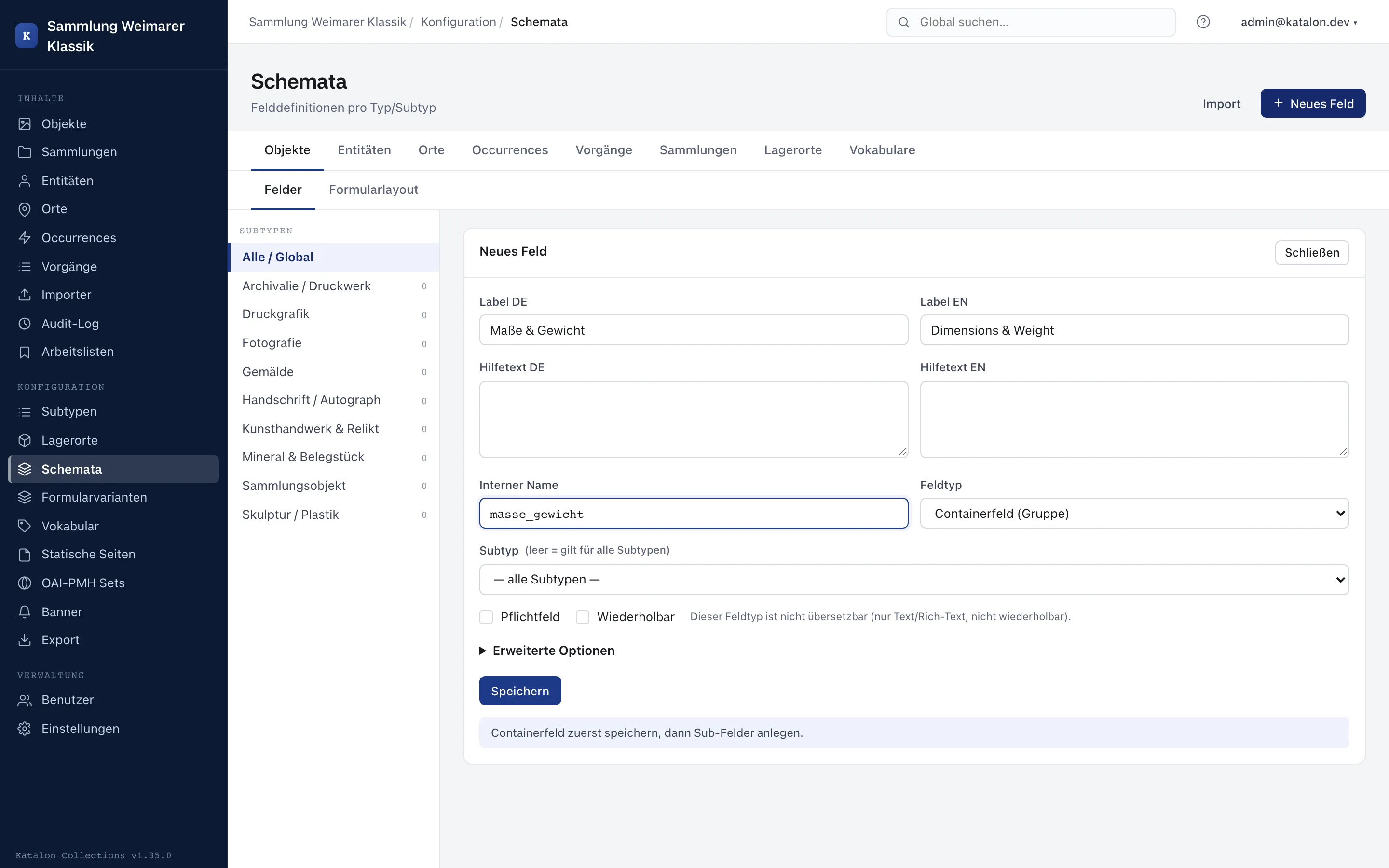
Examples:
- Dimension (value + unit)
- Exhibition participation (exhibition + role)
Cookbook: Dating type (uncertain/qualified dating)
Section titled “Cookbook: Dating type (uncertain/qualified dating)”The date field only accepts concrete dates (see above). Approximate values and date ranges are not expressed via syntax in the date value (no EDTF) — for this there are two established patterns:
- Date range (from/to): two separate
datefields, e.g.date_created_from/date_created_to. - Qualification (circa/before/after/exact): a combination of
group+date+vocab:
- Create a vocabulary, e.g.
dating_typewith terms:exact,circa,before,after,undated. - Create a field of type
group, e.g.dating(label “Dating”). - Create two sub-fields under it:
date(typedate)type(typevocab,settings.vocabulary_id→ vocabularydating_type)
Result: multiple datings, each with its own type, can be captured per record (e.g. creation “circa 1920”, acquisition “exact 1955”), and the type is facetable/searchable as a vocabulary value — independent of the date value. Qualifying a BCE date also works this way: date = -0043, type = circa (“circa 44 BCE”).
Subtype fields
Section titled “Subtype fields”For Object, Entity, Place, Occurrence, and Procedure, a field can be bound to a specific subtype.
- Field without
target_subtype: Appears for all records of this primary type, regardless of subtype. - Field with
target_subtype = "person": Appears only for entities of subtypeperson. - Field with
target_subtype = "acquisition": Appears only for procedures of typeacquisition.
Use case:
An entity can be a person or an organization. Persons need a date of birth and place of death, organizations need a founding year and legal form. Subtype fields let you control the form accordingly.
In the admin UI, an existing subtype can be selected for each record type. If the subtype input field is left empty, the field applies to all subtypes.
Subtypes are created in subtype management and validated server-side. For procedures, loan_out, loan_in, acquisition, conservation, object_entry, and deaccession are created as the initial set. Like custom procedure types, they can be deleted as long as no procedure uses them; deleting one deactivates its subtype-specific field definitions and form variants. Custom procedure types can additionally be created and used for fields and form variants.
Schema import from YAML or JSON
Section titled “Schema import from YAML or JSON”Instead of creating fields one by one, field definitions can be imported as a YAML or JSON file. This is useful for initial schema configuration or when transferring a schema between instances.
The import happens in the admin UI under Configuration → Schemas → Import.
File format
Section titled “File format”The file describes a primary type and a list of fields:
target_type: objectfields:  - name: title    label:      de: Titel      en: Title    field_type: text    is_required: true    is_repeatable: false    sort_order: 0
  - name: date_created    label:      de: Entstehungsdatum      en: Date created    field_type: date    is_required: false    is_repeatable: false    sort_order: 10
  - name: material    label:      de: Material    field_type: vocab    is_required: false    is_repeatable: true    sort_order: 20    settings:      vocabulary_id: "3fa85f64-5717-4562-b3fc-2c963f66afa6"
  - name: description    label:      de: Beschreibung    field_type: richtext    is_required: false    is_repeatable: false    sort_order: 30
  - name: photographer    label:      de: Fotograf:in      en: Photographer    field_type: relation    is_required: false    is_repeatable: true    sort_order: 40
Equivalent JSON format:
{ "target_type": "object", "fields": [ { "name": "title", "label": {"de": "Titel", "en": "Title"}, "field_type": "text", "is_required": true, "is_repeatable": false, "sort_order": 0 } ]}Field specification (complete)
Section titled “Field specification (complete)”| Key | Type | Required | Default | Description |
|---|---|---|---|---|
name |
String | Yes | — | Internal name. Must be unique within the type. |
label |
Object | No | {} |
Labels per language: {"de": "...", "en": "..."} |
field_type |
String | No | text |
One of the valid field types (see above) |
is_required |
Boolean | No | false |
Required field |
is_repeatable |
Boolean | No | false |
Repeatable |
sort_order |
Integer | No | Index in list | Order in the form |
target_subtype |
String | No | null |
Only valid for this subtype |
settings |
Object | No | {} |
Field-type-specific options |
Dry run
Section titled “Dry run”If the Dry run option is enabled, the file is parsed and evaluated, but nothing is written to the database. The result shows:
- How many fields would be newly created
- How many fields would be updated (only with the overwrite option)
- How many fields would be skipped (already present, no overwrite)
- Errors in the file (missing required fields, invalid structure)
Overwrite
Section titled “Overwrite”By default, fields that already exist under the same name are skipped. With the Overwrite existing option, existing fields are updated with the values from the import file.
A field’s name cannot be changed after creation — it serves as the identification key on import.
Validation regex for text fields
Section titled “Validation regex for text fields”For fields of type text, a regular expression can be set as a validation rule. On data entry, the entered value is checked against this expression.
The expression is stored in settings.validation_regex:
{"validation_regex": "^\\d{4}$"}Useful examples:
| Use case | Expression |
|---|---|
| Four-digit year | ^\d{4}$ |
| ISBN-13 | ^97[89]-[0-9]{10}$ |
| ISSN | ^\d{4}-\d{3}[\dX]$ |
| DOI | ^10\.\d{4,}/.+$ |
| GND ID (numeric) | ^\d{8,10}[\dX]$ |
In the admin UI, there is an input field for the regex directly in the field form (only visible when field_type = text).
Type validation and data integrity
Section titled “Type validation and data integrity”Configuring vocabulary fields
Section titled “Configuring vocabulary fields”To link a vocab field to a vocabulary:
- Make sure the desired vocabulary exists under Configuration → Vocabularies.
- Copy the vocabulary’s UUID (visible in the detail view).
- Create or edit the field, choose field type
Vocabulary. - Enter the UUID in the
settings.vocabulary_idfield.
When creating via schema import: insert the UUID in settings.vocabulary_id (see example above).
Without vocabulary_id, the field shows an empty selection list during data entry.